Guide
Arduino 101
A hands-on starter guide to the Arduino Uno. Fourteen small builds, from a blinking LED to a digital dice, each with the wiring and the code.
- Date
- Topic
- Arduino
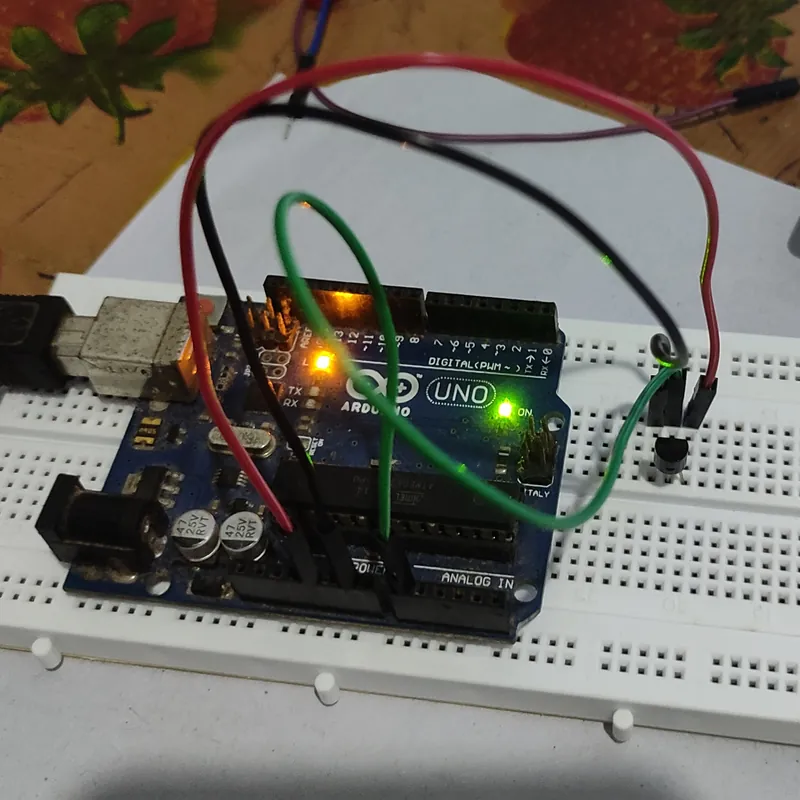
I put this guide together from my notes for Level 1 of the Kerala IoT Challenge, run by Foxlab Makerspace with GTech in 2021. Level 1 was Arduino and basic electronics.
Work through it in order. Each build adds one new idea to the ones before it, and by the end you'll have used every basic way an Arduino talks to the world.
Before you start
What you need
- Arduino Uno and its USB cable
- Breadboard and male-to-male jumper wires
- LEDs: at least six, including one red, one yellow and one green
- Resistors: a handful of 220Ω and two 10kΩ
- Push button
- Active buzzer
- RGB LED (common cathode)
- LDR (light dependent resistor)
- 10kΩ potentiometer
- LM35 temperature sensor
- Flame sensor module
- IR receiver (TSOP type) and any TV remote
- Single-digit seven-segment display (common cathode)
No kit yet? Tinkercad Circuits lets you build and run most of these in the browser for free. The diagrams below were drawn there.
Set up the software
- Download the Arduino IDE from arduino.cc and install it.
- Plug in the Uno with the USB cable.
- In the IDE, pick Tools → Board → Arduino Uno, then pick the board's port under Tools → Port.
- Paste in a sketch and press Upload (the arrow button).
- For builds that print numbers, open Tools → Serial Monitor and set it to 9600 baud.
How a sketch works
Every Arduino program, called a sketch, has two parts. setup() runs once when the board powers on. loop() runs after that, over and over, forever.
Five functions do almost all the work in this guide:
pinMode(pin, OUTPUT)orpinMode(pin, INPUT)tells a pin which way it's working.digitalWrite(pin, HIGH)puts 5V on a pin.LOWputs 0V.digitalRead(pin)checks whether a pin is HIGH or LOW.analogRead(pin)reads a voltage on pins A0 to A5 as a number from 0 to 1023.analogWrite(pin, value)fakes a voltage between 0 and 5V on the pins marked~, using a value from 0 to 255.
Two rules for LEDs
- The long leg is positive. It goes towards the Arduino pin; the short leg goes to GND.
- Always put a 220Ω resistor in series with an LED. Without one, the LED pulls too much current and can burn out, along with the pin.
Part 1: Outputs
1. Blink an LED
This is the "Hello World" of Arduino. If this works, your board, cable and software are all set up correctly.
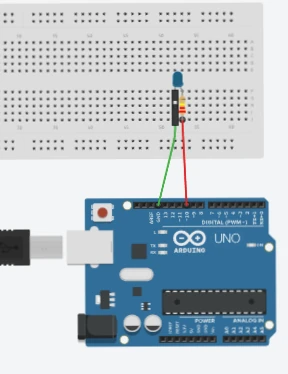
Wiring: LED long leg to pin 10 through a 220Ω resistor, short leg to GND.
int ledPin = 10;

void setup() {
  pinMode(ledPin, OUTPUT);
}

void loop() {
  digitalWrite(ledPin, HIGH);  // on
  delay(1000);                 // wait one second
  digitalWrite(ledPin, LOW);   // off
  delay(1000);
}
The LED blinks once a second. delay() counts in milliseconds, so change both 1000s to 100 and watch it speed up.
2. Traffic light
Same idea, three LEDs. The only new thing is the for loop, which repeats a block a set number of times.
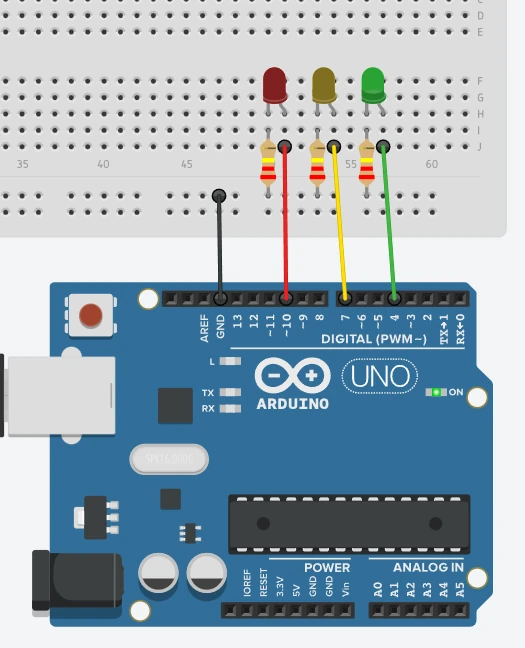
Wiring: red LED to pin 10, yellow to pin 7, green to pin 4. Each gets its own 220Ω resistor, and all short legs go to GND.
int redLed = 10;
int yellowLed = 7;
int greenLed = 4;

void setup() {
  pinMode(redLed, OUTPUT);
  pinMode(yellowLed, OUTPUT);
  pinMode(greenLed, OUTPUT);
}

void loop() {
  digitalWrite(greenLed, HIGH);   // green for 5 seconds
  delay(5000);
  digitalWrite(greenLed, LOW);

  for (int i = 0; i < 3; i++) {   // yellow blinks 3 times
    delay(500);
    digitalWrite(yellowLed, HIGH);
    delay(500);
    digitalWrite(yellowLed, LOW);
  }

  delay(500);
  digitalWrite(redLed, HIGH);     // red for 5 seconds
  delay(5000);
  digitalWrite(redLed, LOW);
}
3. LED chase
Six LEDs light up one after another, like the running lights on a shop sign. When the LEDs sit on pins next to each other, a single loop can count through the pins.
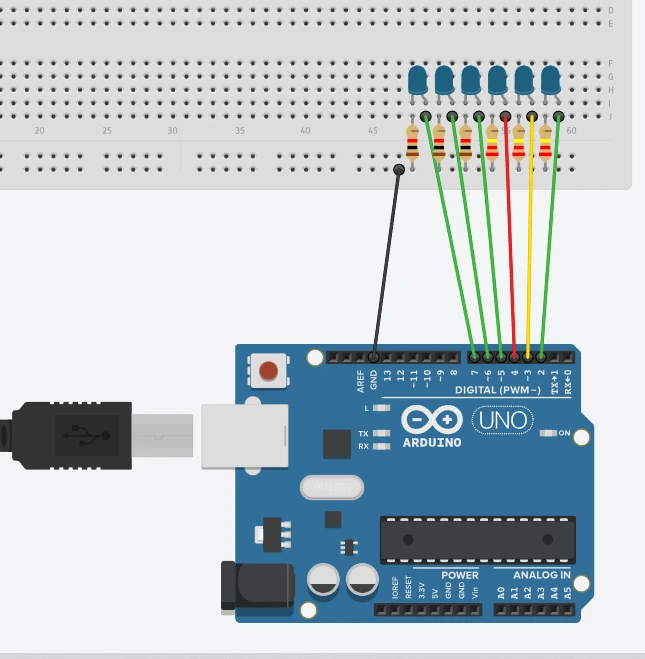
Wiring: six LEDs on pins 2, 3, 4, 5, 6 and 7, each with a 220Ω resistor, all short legs to GND.
int firstPin = 2;   // the first LED
int count = 6;      // how many LEDs

void setup() {
  for (int pin = firstPin; pin < firstPin + count; pin++) {
    pinMode(pin, OUTPUT);
  }
}

void loop() {
  for (int pin = firstPin; pin < firstPin + count; pin++) {
    digitalWrite(pin, LOW);    // turn off one by one
    delay(200);
  }
  for (int pin = firstPin; pin < firstPin + count; pin++) {
    digitalWrite(pin, HIGH);   // turn on one by one
    delay(400);
  }
}
4. Buzzer
An active buzzer has its own sound circuit inside. Give it 5V and it beeps, so driving it is exactly like driving an LED.
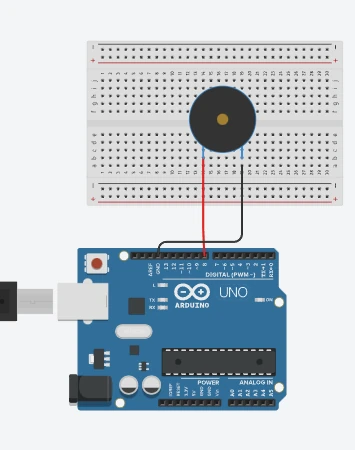
Wiring: buzzer positive (longer leg, or marked +) to pin 8, negative to GND.
int buzzer = 8;

void setup() {
  pinMode(buzzer, OUTPUT);
}

void loop() {
  digitalWrite(buzzer, HIGH);   // beep
  delay(200);
  digitalWrite(buzzer, LOW);    // quiet
  delay(800);
}
If you only hear a click, you have a passive buzzer. Those need a changing signal, so use tone(buzzer, 440); instead of digitalWrite(buzzer, HIGH); and noTone(buzzer); instead of digitalWrite(buzzer, LOW);.
5. RGB LED
An RGB LED is three LEDs (red, green and blue) in one package. Mixing their brightness gives you any colour.
This is where analogWrite() comes in. A digital pin can only be fully on or fully off, so the Arduino switches it on and off hundreds of times a second. The more of each cycle it spends on, the brighter the LED looks. This is called PWM, and it only works on the pins marked ~ (3, 5, 6, 9, 10 and 11 on the Uno).
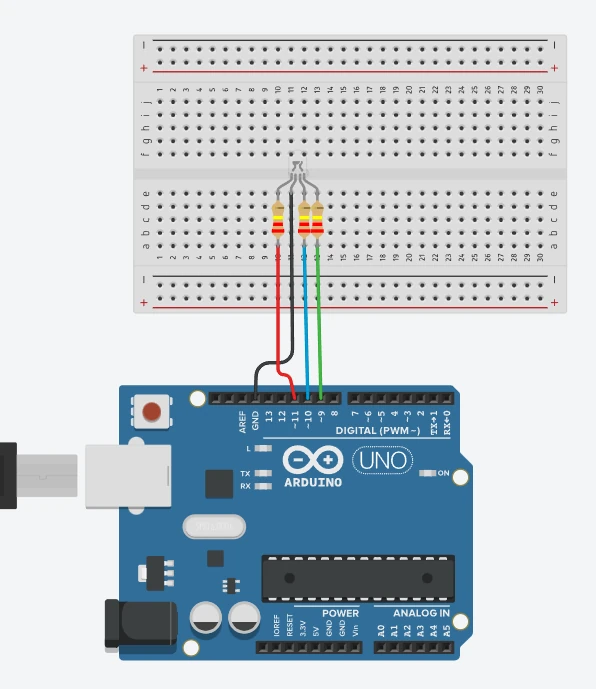
Wiring: the longest leg (the common cathode) goes to GND. Red goes to pin 11, blue to pin 10 and green to pin 9, each through a 220Ω resistor.
int redPin = 11;
int bluePin = 10;
int greenPin = 9;

void setColor(int red, int green, int blue) {
  analogWrite(redPin, red);
  analogWrite(greenPin, green);
  analogWrite(bluePin, blue);
}

void setup() {
  pinMode(redPin, OUTPUT);
  pinMode(greenPin, OUTPUT);
  pinMode(bluePin, OUTPUT);
}

void loop() {
  for (int i = 0; i <= 255; i++) { setColor(255 - i, 0, i); delay(5); }  // red to blue
  for (int i = 0; i <= 255; i++) { setColor(0, i, 255 - i); delay(5); }  // blue to green
  for (int i = 0; i <= 255; i++) { setColor(i, 255 - i, 0); delay(5); }  // green to red
}
The colour fades smoothly around the rainbow. Try setColor(255, 0, 255); on its own and you get purple.
Part 2: Inputs
6. Push button
Now the Arduino listens instead of talks. A button connects 5V to a pin when pressed. The 10kΩ resistor pulls the pin down to GND when it isn't pressed. Without that resistor the pin "floats" and reads random values.
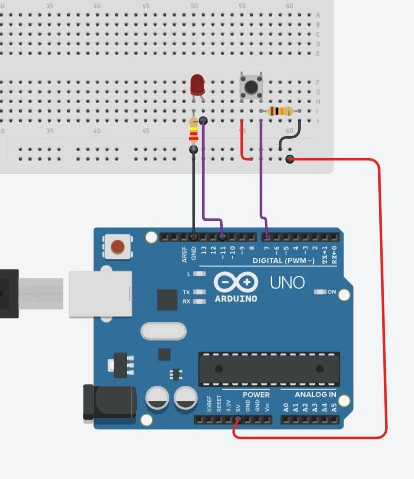
Wiring: one side of the button to 5V. The other side goes to pin 7, and also to GND through a 10kΩ resistor. The LED goes on pin 11 with a 220Ω resistor.
int ledPin = 11;
int buttonPin = 7;

void setup() {
  pinMode(ledPin, OUTPUT);
  pinMode(buttonPin, INPUT);
}

void loop() {
  if (digitalRead(buttonPin) == HIGH) {   // pressed
    digitalWrite(ledPin, HIGH);
  } else {
    digitalWrite(ledPin, LOW);
  }
}
The LED is on only while you hold the button.
7. Potentiometer
A potentiometer is a knob that gives out any voltage between 0 and 5V. analogRead() turns that voltage into a number from 0 to 1023, and the Serial Monitor lets you watch the number.
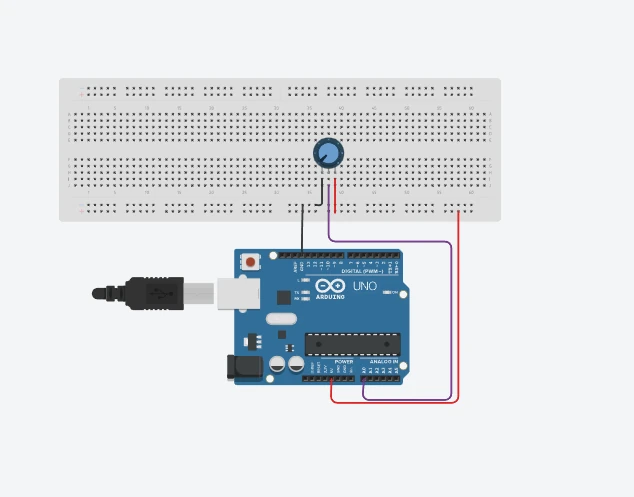
Wiring: the two outer legs go to 5V and GND, and the middle leg goes to A0.
int potPin = A0;

void setup() {
  Serial.begin(9600);
}

void loop() {
  int value = analogRead(potPin);   // 0 to 1023
  Serial.println(value);
  delay(100);
}
Open the Serial Monitor and turn the knob. The number follows it from 0 to 1023.
To make the knob do something, add pinMode(13, OUTPUT); to setup() and blink the built-in LED with delay(value). Now the knob sets the blink speed.
8. Light sensor (LDR)
An LDR's resistance drops as light gets brighter. The Arduino can't read resistance, only voltage, so you pair the LDR with a 10kΩ resistor. Together they form a voltage divider, and the voltage where they meet changes with the light.
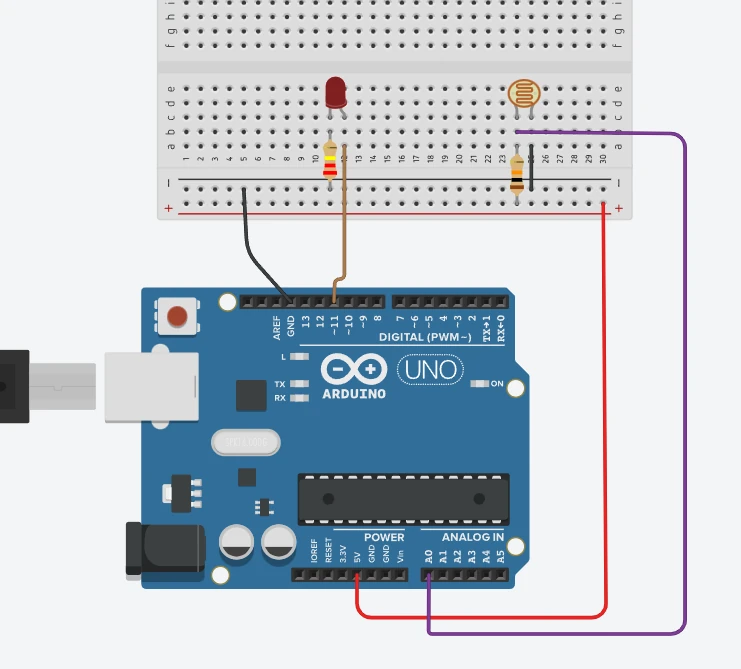
Wiring:
- Connect 5V to the breadboard's positive rail and GND to the negative rail.
- Put one leg of the LDR on the positive rail.
- Join the LDR's other leg to a 10kΩ resistor, and run the resistor's far end to the negative rail.
- Wire the point where the LDR and resistor meet to A0.
- Put the LED on pin 11 (a
~pin) through a 220Ω resistor.
int ldrPin = A0;
int ledPin = 11;

void setup() {
  pinMode(ledPin, OUTPUT);
  Serial.begin(9600);
}

void loop() {
  int light = analogRead(ldrPin);                  // 0 to 1023
  Serial.println(light);
  analogWrite(ledPin, map(light, 0, 1023, 0, 255)); // scale to 0 to 255
  delay(10);
}
map() converts a number from one range to another. Here it turns the 0 to 1023 reading into the 0 to 255 range analogWrite() expects.
Cover the LDR with your hand and the number drops and the LED dims. If you swap the LDR and the resistor, it works the other way round. Build 13 uses exactly that.
9. Temperature sensor (LM35)
The LM35 outputs 10 millivolts for every degree Celsius, so 25°C comes out as 0.25V. No extra parts are needed.
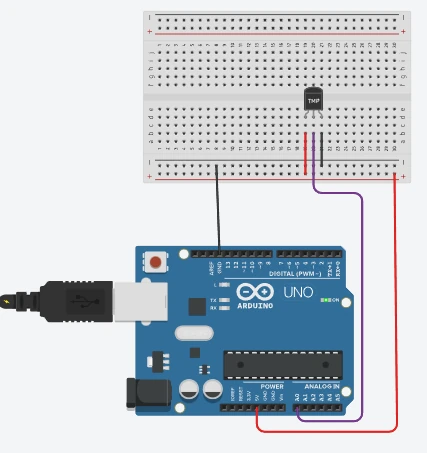
Wiring: hold the sensor with its flat face towards you. The left leg goes to 5V, the middle to A0 and the right to GND.
void setup() {
  Serial.begin(9600);
}

void loop() {
  int reading = analogRead(A0);
  float celsius = reading * 500.0 / 1024;   // 5000 mV across 1024 steps, 10 mV per degree
  Serial.print("Temperature: ");
  Serial.print(celsius);
  Serial.println(" C");
  delay(2000);
}
Pinch the sensor between your fingers and watch the number climb.
Tinkercad doesn't have an LM35, so the diagram uses its TMP36, which has the same pins. If you're simulating with the TMP36, its output starts at 0.5V instead of 0V. Use float celsius = (reading * 5000.0 / 1024 - 500) / 10; instead.
10. Flame sensor
A flame sensor module looks for infrared light in the range a flame gives off (about 760 to 1100 nm). Most modules have a digital output pin that goes LOW when they see a flame. The small screw on the board sets the sensitivity.
Wiring: connect the module's VCC to 5V, GND to GND, and DO (digital out) to pin 11. Put the buzzer on pin 12. Add a red LED on pin 5 and a green LED on pin 6, each with a 220Ω resistor.
int buzzer = 12;
int flamePin = 11;
int redLed = 5;
int greenLed = 6;

void setup() {
  pinMode(buzzer, OUTPUT);
  pinMode(redLed, OUTPUT);
  pinMode(greenLed, OUTPUT);
  pinMode(flamePin, INPUT);
}

void loop() {
  if (digitalRead(flamePin) == LOW) {   // flame seen
    digitalWrite(buzzer, HIGH);
    digitalWrite(redLed, HIGH);
    digitalWrite(greenLed, LOW);
  } else {                              // all clear
    digitalWrite(buzzer, LOW);
    digitalWrite(redLed, LOW);
    digitalWrite(greenLed, HIGH);
  }
}
Green means all clear. Hold a lighter flame in front of the sensor and the buzzer and red LED come on. Sunlight has plenty of infrared too, so test indoors.
11. IR remote
The little black receiver with three legs (often a TSOP1838) decodes the invisible pulses from a TV remote. Each button sends its own code. Once you know the codes, any remote becomes a controller.
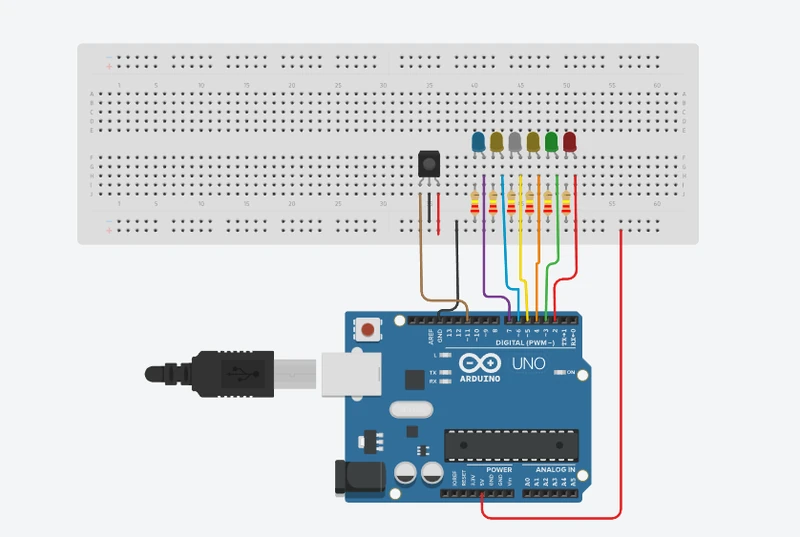
Wiring: the receiver's OUT pin goes to pin 11, its VCC to 5V and its GND to GND. Check your receiver's datasheet, because the pin order varies. Then wire six LEDs on pins 2 to 7, each with a 220Ω resistor.
Install the IRremote library first: Sketch → Include Library → Manage Libraries, search "IRremote", then install.
#include <IRremote.hpp>

int recvPin = 11;
int firstLed = 2;   // six LEDs on pins 2 to 7

// Codes for buttons 1 to 6. Replace these with what your remote prints.
int buttons[6] = {0x0C, 0x18, 0x5E, 0x08, 0x1C, 0x5A};

void setup() {
  Serial.begin(9600);
  IrReceiver.begin(recvPin);
  for (int i = 0; i < 6; i++) {
    pinMode(firstLed + i, OUTPUT);
  }
}

void loop() {
  if (IrReceiver.decode()) {
    bool isRepeat = IrReceiver.decodedIRData.flags & IRDATA_FLAGS_IS_REPEAT;
    int code = IrReceiver.decodedIRData.command;
    IrReceiver.resume();   // get ready for the next button

    if (!isRepeat) {
      Serial.print("Button code: 0x");
      Serial.println(code, HEX);
      for (int i = 0; i < 6; i++) {
        if (code == buttons[i]) {
          int pin = firstLed + i;
          digitalWrite(pin, !digitalRead(pin));   // flip that LED on or off
        }
      }
    }
  }
}
Upload it, open the Serial Monitor and press each button you want to use. Copy the codes it prints into the buttons list, then upload again. Now each button switches its own LED on and off.
When you hold a button down, the remote sends a short "repeat" signal instead of the code again. The isRepeat check ignores those.
Part 3: Display
12. Seven-segment display
A seven-segment display is seven LEDs shaped into an 8, plus a dot. The segments are named a to g, clockwise from the top, with g in the middle. To show a digit, you switch on the right segments.
Wiring: this uses a common cathode display, so connect its common pin to GND. Then wire each segment to a pin through its own 220Ω resistor:
- a to pin 7, b to pin 6, c to pin 5, d to pin 10
- e to pin 11, f to pin 8, g to pin 9, and the dot (dp) to pin 4
The segment pin layout varies between displays, so check the datasheet for yours.
// Segment pins, in order a, b, c, d, e, f, g
int seg[7] = {7, 6, 5, 10, 11, 8, 9};
int dpPin = 4;

// One row per digit. Each 1 is a lit segment, read left to right as a to g.
byte digits[10] = {
  0b1111110,  // 0
  0b0110000,  // 1
  0b1101101,  // 2
  0b1111001,  // 3
  0b0110011,  // 4
  0b1011011,  // 5
  0b1011111,  // 6
  0b1110000,  // 7
  0b1111111,  // 8
  0b1111011   // 9
};

void showDigit(int n) {
  for (int s = 0; s < 7; s++) {
    digitalWrite(seg[s], bitRead(digits[n], 6 - s));
  }
}

void setup() {
  for (int s = 0; s < 7; s++) {
    pinMode(seg[s], OUTPUT);
  }
  pinMode(dpPin, OUTPUT);
  digitalWrite(dpPin, LOW);
}

void loop() {
  for (int n = 0; n <= 9; n++) {
    showDigit(n);
    delay(1000);
  }
}
The display counts from 0 to 9, one digit a second. Storing the digits in a table like this keeps the code short. You could write out every digitalWrite() by hand, but that takes about eighty lines.
Part 4: Put it together
13. Automatic night light
This one uses the light sensor and an LED to make a lamp that turns itself on when the room gets dark.
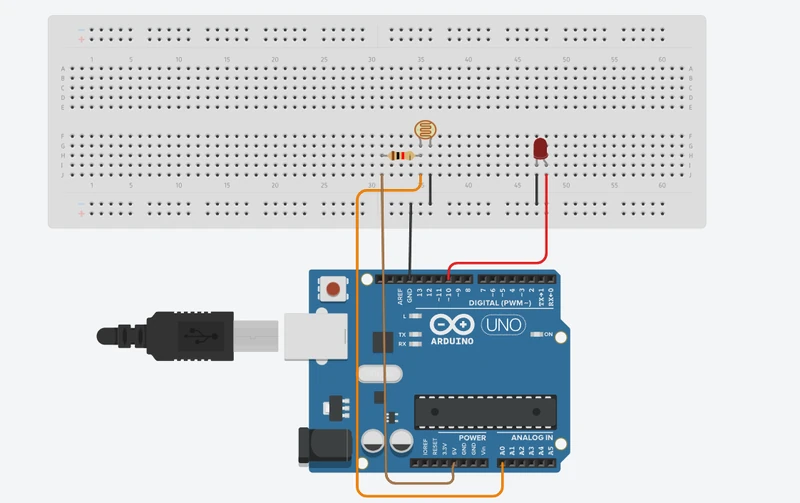
Wiring: this time the resistor goes to 5V and the LDR goes to GND, the reverse of build 8. Their join goes to A0. The LED goes on pin 10. The diagram leaves out the LED's resistor, but add a 220Ω anyway.
Because the LDR is now on the ground side, the reading goes up in the dark.
int ledPin = 10;
int ldrPin = A0;
int darkLevel = 700;   // set this using the Serial Monitor

void setup() {
  pinMode(ledPin, OUTPUT);
  Serial.begin(9600);
}

void loop() {
  int reading = analogRead(ldrPin);
  Serial.println(reading);

  if (reading > darkLevel) {
    digitalWrite(ledPin, HIGH);   // dark: lamp on
  } else {
    digitalWrite(ledPin, LOW);    // bright: lamp off
  }
  delay(100);
}
Every room and every LDR is different. Watch the Serial Monitor in normal light, then cover the sensor. Set darkLevel somewhere between the two numbers.
14. Digital dice
Press a button and a random number of LEDs, from one to six, lights up. It reuses the chase wiring from build 3 and the button from build 6.
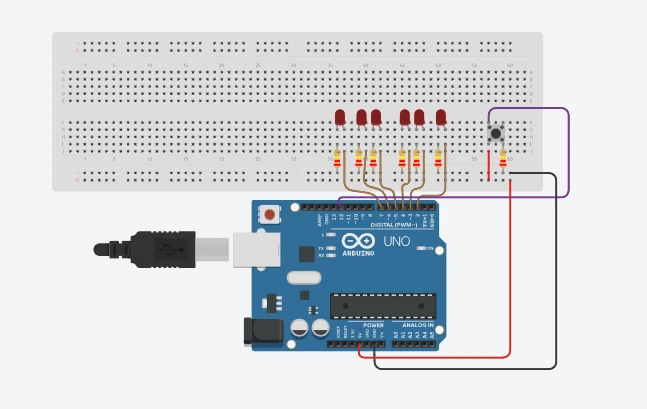
Wiring: six LEDs on pins 2 to 7 as in build 3. The button goes between 5V and pin 12, with a resistor from pin 12 to GND (anything from 1kΩ to 10kΩ works).
int firstLed = 2;   // six LEDs on pins 2 to 7
int button = 12;

void allOff() {
  for (int i = 0; i < 6; i++) {
    digitalWrite(firstLed + i, LOW);
  }
}

void rollAnimation() {
  for (int i = 0; i < 6; i++) {
    allOff();
    digitalWrite(firstLed + i, HIGH);
    delay(80);
  }
  allOff();
}

void setup() {
  for (int i = 0; i < 6; i++) {
    pinMode(firstLed + i, OUTPUT);
  }
  pinMode(button, INPUT);
  randomSeed(analogRead(A0));   // A0 is left unconnected, so it reads electrical noise
}

void loop() {
  if (digitalRead(button) == HIGH) {
    rollAnimation();
    int number = random(1, 7);   // 1 to 6 (the upper limit is left out)
    for (int i = 0; i < number; i++) {
      digitalWrite(firstLed + i, HIGH);
    }
    while (digitalRead(button) == HIGH) {}   // wait until the button is released
  }
}
random() on its own gives the same sequence every time the board restarts. Feeding randomSeed() noise from an empty analog pin makes each run different.
Where to go next
These builds are the basics: outputs, inputs, analog readings, PWM, and logic that ties them together. Almost every Arduino project is some mix of them.
Level 2 of the challenge moved to the ESP32, a board with Wi-Fi built in, and used Blynk and the Arduino IoT Cloud to switch an LED from a phone. That's where IoT starts. My original write-ups for both levels are in the Kerala IoT Challenge repo.